Design - Syntax Colorizer
December 11, 2020
Last updated on October 28, 2026
This article describes how the OneMore Colorize engine works and how a programming language is defined for it. It is for contributors who want to fix the engine or add a new language.
Requirements
The engine must:
- Color source code that sits in OneNote paragraphs.
- Support many languages without code changes. A new language is a data file.
- Let a user edit or add a language file without a rebuild.
- Support light and dark pages.
- Recognize constructs that span several lines, such as block comments.
- Keep the language definition separate from the colors, so that one language works with every theme.
Assumptions
- The engine reads text. It does not build a syntax tree and does not understand grammar. It finds patterns.
- OneNote stores each paragraph as one T run with HTML-style text in a CDATA section. The engine writes colors as <span style="..."> elements in that text.
- A regular expression is accurate enough for syntax coloring. A rare wrong color is acceptable. A crash is not.
Overview
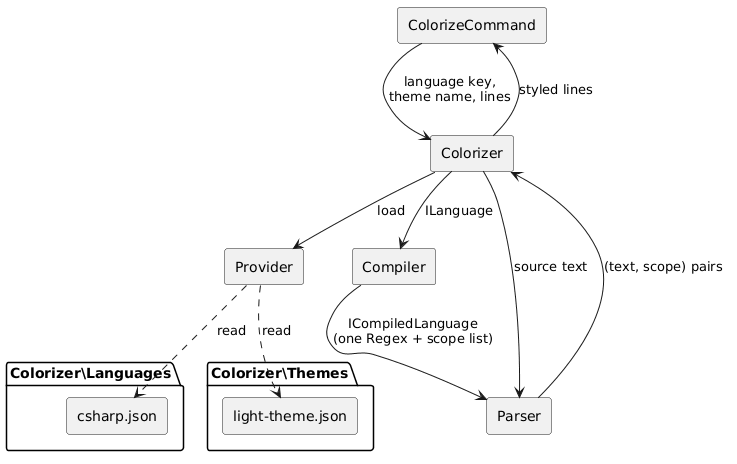
The engine has four parts. Each part does one job.
|
Part |
Class |
Job |
|
Provider |
|
Reads language and theme JSON files from disk |
|
Compiler |
|
Combines the rules of a language into one regular expression |
|
Parser |
|
Runs the expression on the source and reports text runs, each with a scope name |
|
Colorizer |
|
Converts each run to styled OneNote text with the help of a theme |
A scope is a name for a kind of text, for example Comment, String, or Keyword. The language file assigns scopes to text. The theme file assigns colors to scopes. Neither file knows about the other. The scope name is the only link between them.
|
Colorizer (Extract) |
|
Colorizer PlantUML (Refresh)
Processing flow
ColorizeCommand selects the OneNote runs the user highlighted. It chooses the light or dark theme from the brightness of the page color. Then it creates a Colorizer for the language the user picked.
The Colorizer constructor does the one-time work:
- Find Colorizer\Languages\{key}.json next to the add-in assembly.
- Deserialize the file into a Language object.
- Compile the rules into one Regex.
- Load Colorizer\Themes\{theme}-theme.json.
- Read the optional font override from the user settings.
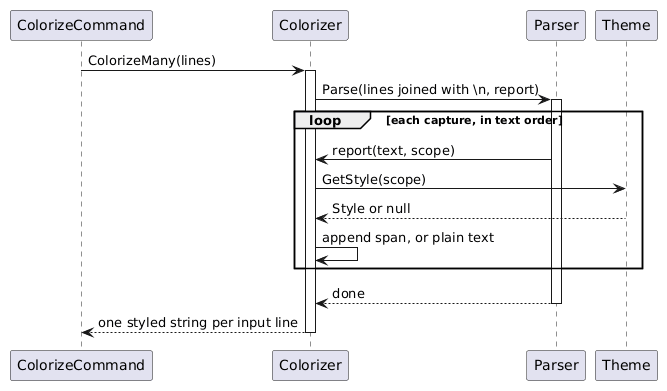
After that, the Colorizer hands source text to the Parser. The Parser calls back with a stream of (text, scope) pairs. The Colorizer looks up the style for each scope, wraps the text in a span, and appends it to the current line.
|
Processing Flow (Extract) |
Processing Flow PlantUML (Refresh)
Three output forms
The parser output is generic. The Colorizer turns it into the form the caller needs:
|
Method |
Input |
Output |
Use |
|
|
One source string |
An OEChildren element with one OE per line |
Building new page content |
|
|
One line |
One styled string |
Single-line fallback |
|
|
A list of lines |
A list with exactly one styled string for each input line |
Normal path for the Colorize command |
ColorizeMany joins the lines with \n and parses them as one block. This is how a block comment that starts in one paragraph and ends in another gets the right color. After parsing, it splits the output at each \n to restore the original paragraphs. If a run holds a raw newline, the counts differ, and ColorizeCommand falls back to ColorizeOne for each line.
Language definition
A language is one JSON file in Colorizer\Languages. The file name, without .json, is the language key. The name property is the text shown in the ribbon menu and in the picker.
{
"name": "Json",
"rules": [
{
"pattern": "^\\s*(//.*?)\\r?$",
"captures": [ "Comment" ]
},
{
"pattern": "(\"(?:\\\\.|[^\"\\\\\\r\\n])*\")\\s*:\\s*(-?[0-9]+(?:\\.[0-9]+)?)",
"captures": [ "JsonKey", "Number" ]
},
{
"pattern": "\\b(true|false|null)\\b",
"captures": [ "Keyword" ]
}
]
}
Rule
A rule has these properties:
|
Property |
Required |
Meaning |
|
|
Yes |
A .NET regular expression |
|
|
Yes |
One scope name for each capturing group in pattern, in order |
|
|
No |
A scope override. It starts or ends a multi-line region. See Multi-line constructs |
Scope names are not case sensitive. The engine changes them to lower case when it loads the file.
How captures work
Only the text inside a capturing group gets a scope. Text that the pattern matches but does not capture is context. Context lets a rule look at its surroundings without coloring them.
Look at this rule from the C# definition:
{
"pattern": "\\b(class|struct|interface|enum)\\s+([A-Za-z_]\\w*)",
"captures": [ "Keyword", "ClassName" ]
}
For the text class Widget:
- Group 1 captures class and gives it the scope Keyword.
- The whitespace is not in a group, so it stays plain text.
- Group 2 captures Widget and gives it the scope ClassName.
A rule is legal only when the number of capturing groups equals the number of entries in captures. The compiler counts the groups and rejects the language on a mismatch. Use (?:...) for groups that must not capture.
The compiler also rejects:
- An empty pattern.
- A rule with no captures.
- A named group such as (?<name>...). The engine names the groups itself.
Any of these errors raises a LanguageException that names the language and the rule number. The user sees a message that tells which language file is broken.
Rule order
The compiler joins all rules with the regex alternation operator |. This sets two priorities:
- The match that starts first in the text wins.
- When two rules can start at the same place, the rule that is listed first wins.
So put the rules that consume the most text first: comments and strings. Put narrow rules, such as keywords and numbers, last. Because a string or comment is consumed whole, a keyword inside it is never seen as a keyword. This is why "if" is colored as a string.
Pattern options
The compiler wraps every rule in a group that resets the regex options:
(?-xis)(?m)(?: <your pattern> )(?x)
For your pattern, this means:
- Whitespace in the pattern is literal. Pattern-whitespace mode is off.
- Matching is case sensitive. Add (?i) to the pattern for case-insensitive keywords.
- A dot does not match a newline. Add (?s) when a rule must cross lines, for example a raw string.
- ^ and $ match at the start and end of each line.
The options of one rule never leak into the next rule.
What the compiler produces
For a language with n rules, the compiler builds one expression:
(?x)
(?-xis)(?m)($)(?x) # capture 1: end of line
|
(?-xis)(?m)(?: rule 0 )(?x) # captures 2..
|
(?-xis)(?m)(?: rule 1 )(?x)
| ...
The compiler also builds a parallel list of scopes. Index i in the list is the scope of capturing group i:
|
Index |
Scope |
Source |
|
0 |
|
The whole match (added by the compiler) |
|
1 |
|
End of line (added by the compiler) |
|
2... |
Every entry of captures, rule by rule |
The language file |
Because groups are numbered in order of appearance, group i in the match always maps to Scopes[i]. This is why the capture count must be exact.
The first alternative, ($), matches every end of line. It gives the parser a marker for each line break.
Parsing
A .NET match can group captures in an order that is different from their order in the text. A rule with repeating groups, such as XML attributes, returns all values of one group together:
<foo a1="v1" a2="v2">
group "XmlName" -> foo
group "XmlAttribute" -> a1, a2 (not in text order)
group "XmlAttributeValue" -> v1, v2
The parser fixes this in three steps:
- Flatten every capture of every match into a list of (scope, index, length, value).
- Sort the list by index.
- Walk the list. For each capture:
- If there is a gap between the end of the last capture and the start of this one, report the gap as plain text (scope = null).
- Report the capture with its scope name.
After the last capture, the parser reports any remaining text as plain text. If nothing matched, it reports the whole source as plain text.
The parser does not format anything. It calls one delegate, Action<string, string>. This keeps the parser independent of OneNote. A different front end, for example RTF or plain HTML, only needs a different delegate.
The parser first converts \r\n to \n. A rule can then match \n without handling both forms.
Multi-line constructs
The parser sees the full source at once, so a rule can match across lines when it uses (?s) or character classes such as [^*]|[\r\n]. Many cases need no more help than that. A complete /* ... */ comment is one match.
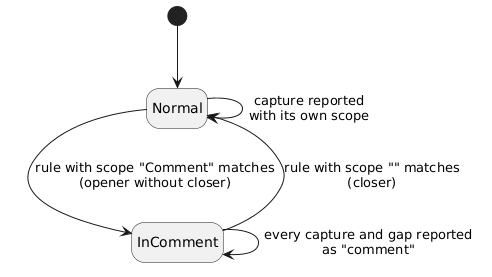
Sometimes the end of the construct is not in the source that the engine sees. For example, a user may colorize only the first half of a long comment. For this case, the engine has a scope override. A language needs three rules:
|
Rule |
Purpose |
|
|
1 |
Match a full comment from opener to closer |
(none) |
|
2 |
Match an opener with no closer on the line |
|
|
3 |
Match a closer at the start of a line |
"" (empty) |
This is how it looks in the C# definition:
{
"pattern": "(/\\*(?:[^*]|[\\r\\n]|(?:\\*+(?:[^*/]|[\\r\\n])))*\\*+/)",
"captures": [ "Comment" ]
},
{
"pattern": "(/\\*[^\\r\\n]*)$",
"scope": "Comment",
"captures": [ "Comment" ]
},
{
"pattern": "^((?:(?!/\\*)[^\\r\\n])*\\*/)",
"scope": "",
"captures": [ "Comment" ]
}
The parser keeps one state variable, scopeOverride. When a rule with a non-empty scope matches, the parser sets scopeOverride to that scope. While scopeOverride is set, all text is reported with the override scope. This includes gaps and text that other rules captured. When a rule with scope = "" matches, the parser clears the override.
|
Scope Override (Extract) |
|
Scope Override PlantUML (Refresh)
To find which rule produced a capture, the parser adds up the capture counts of the rules until it reaches the capture's group index. Then it reads the scope property of that rule.
Note The override covers the text the engine sees. When the Colorize command processes a set of neighboring paragraphs, ColorizeMany passes them as one block, so the opener and the closer are normally in the same parse. The override is the fallback for blocks that end early.
Themes
A theme is a JSON file in Colorizer\Themes. OneMore ships light-theme.json and dark-theme.json. A theme has two parts:
- colors: a table of color names to HTML color values.
- styles: a list of styles, one for each scope name.
{
"colors": { "Blue": "#2E75B5", "LightGreen": "#00B050" },
"styles": [
{ "name": "PlainText", "foreground": "Black" },
{ "name": "Keyword", "foreground": "Blue" },
{ "name": "Comment", "foreground": "LightGreen", "italic": true }
]
}
A style can set foreground, background, bold, and italic. Style.Apply turns the style into a span:
<span style="color:#2E75B5;">class</span>
At load time, the theme:
- Changes each style name to lower case.
- Replaces color names with #RRGGBB values. A value that is not in the colors table is used as it is.
The lookup of a style by scope name is not case sensitive. If a scope has no style, the text is written without a span. A language can therefore use a new scope name before every theme defines it, and the text only looks plain.
Two special names exist:
- PlainText styles text that no rule captured.
- Auto and AutoNative set the plain-text color. In OneNote native dark mode with an automatic page color, OneNote adjusts text colors itself. The engine then uses AutoNative for PlainText to compensate.
Diff support uses two more styles, DiffAdd and DiffRemove. They set only a background. ColorizeDiffs adds that background to lines that start with + or -.
Class model
|
Class Model (Extract) |
Class Model PlantUML (Refresh)
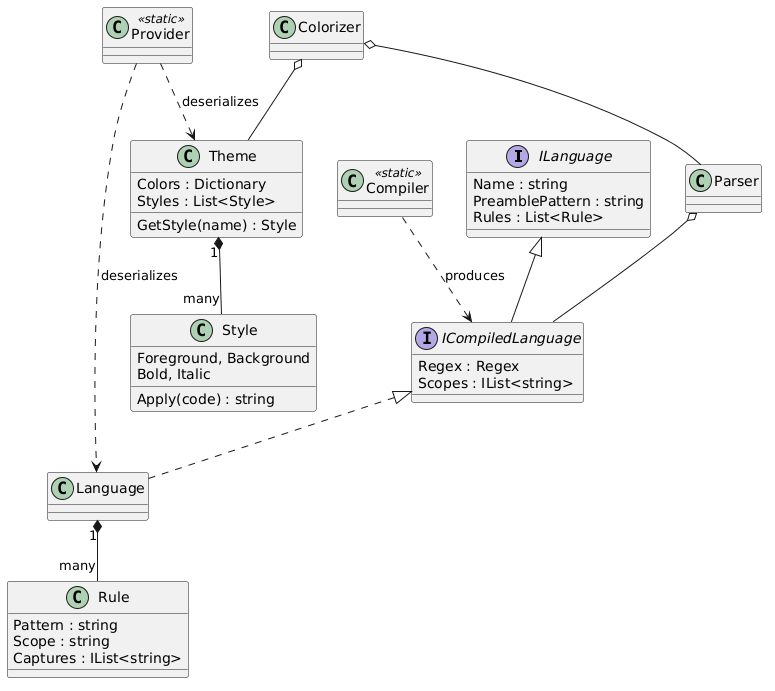
Language and Rule serve two uses. The JSON deserializer fills them. The Compiler then adds the Regex and Scopes to the same Language object. The rest of the code uses the interfaces.
Adding a language
- Create OneMore\Colorizer\Languages\{key}.json. Set name and write the rules.
- Order the rules from the broadest (comments, strings) to the narrowest (keywords, numbers).
- For each rule, count the capturing groups, and write one scope for each in captures.
- Use existing scope names where they fit, so that every theme already colors them. If you need a new scope, add a style for it to both theme files.
- Optional: add {key}.png in the same folder. The picker shows it as the language icon.
- Add the files to OneMore.csproj in the same way as the other language files, so that they are copied to the output.
- Test with a sample that has: a comment, a multi-line comment, a string with an escaped quote, a keyword inside a string, and a number.
The ribbon menu and the language picker list the files in Languages, so no code change is needed. The user can hide a language in the Colorizer settings.
Design notes and limits
- One pass, no nesting. The engine finds the first match and moves on. It cannot color code inside a string, for example the expressions in $"{value}", unless a rule is written for it.
- Backtracking cost. Every rule runs at every position. A rule with nested quantifiers can be slow on long input. Prefer anchored and specific patterns.
- Rule order is part of the language. Moving one rule can change the colors of many other constructs. Test after you reorder.
- Errors are isolated. A malformed file in Languages is logged and skipped when the engine builds the language list. The other languages stay available.
- Unused definition members. ILanguage.PreamblePattern is read from the file, but no code uses it today. Other keys in the file, for example aliases, are ignored by the deserializer.
- No comments in language files. Write plain JSON. Do not add // lines.
#omwiki #omdeveloper #omdesign
© 2020 Steven M Cohn. All rights reserved.
Please consider a sponsorship or one-time donation to support ongoing development
Created with OneNote.